

DOCX to Markdown Without Uploading: A Visual Private Workflow
Word DOCX is the most common path into Markdown for drafts, reports, meeting notes, and documentation. The private workflow is simple: keep the file on your device, convert it in the browser, then review the Markdown before you publish or commit it.
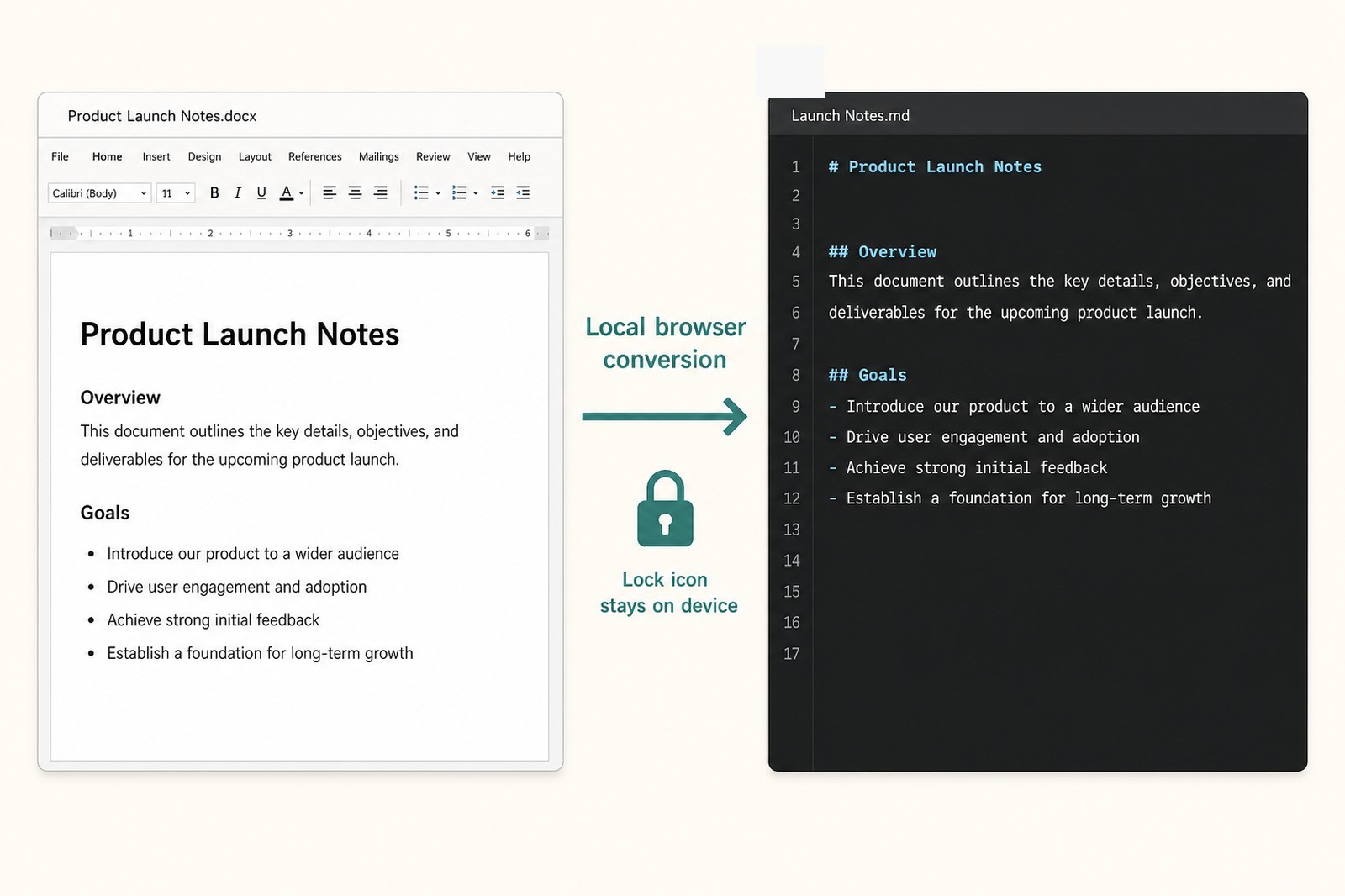
Why DOCX is the default private path
DOCX preserves useful structure for Markdown: headings, paragraphs, bold and italic text, links, lists, and many tables. That makes it a better private export target than screenshots, and cleaner than trying to convert a Google Docs shortcut file.
If your document lives in Google Docs, Microsoft 365, or Apple Pages, export or save a local DOCX first. Then convert that local file. The original stays where it is; only the export is processed in the browser tab.
- Use DOCX for drafts, reports, outlines, and docs-site content.
- Prefer real Heading 1 / Heading 2 / Heading 3 styles in Word.
- Keep the original DOCX until you have reviewed the Markdown.
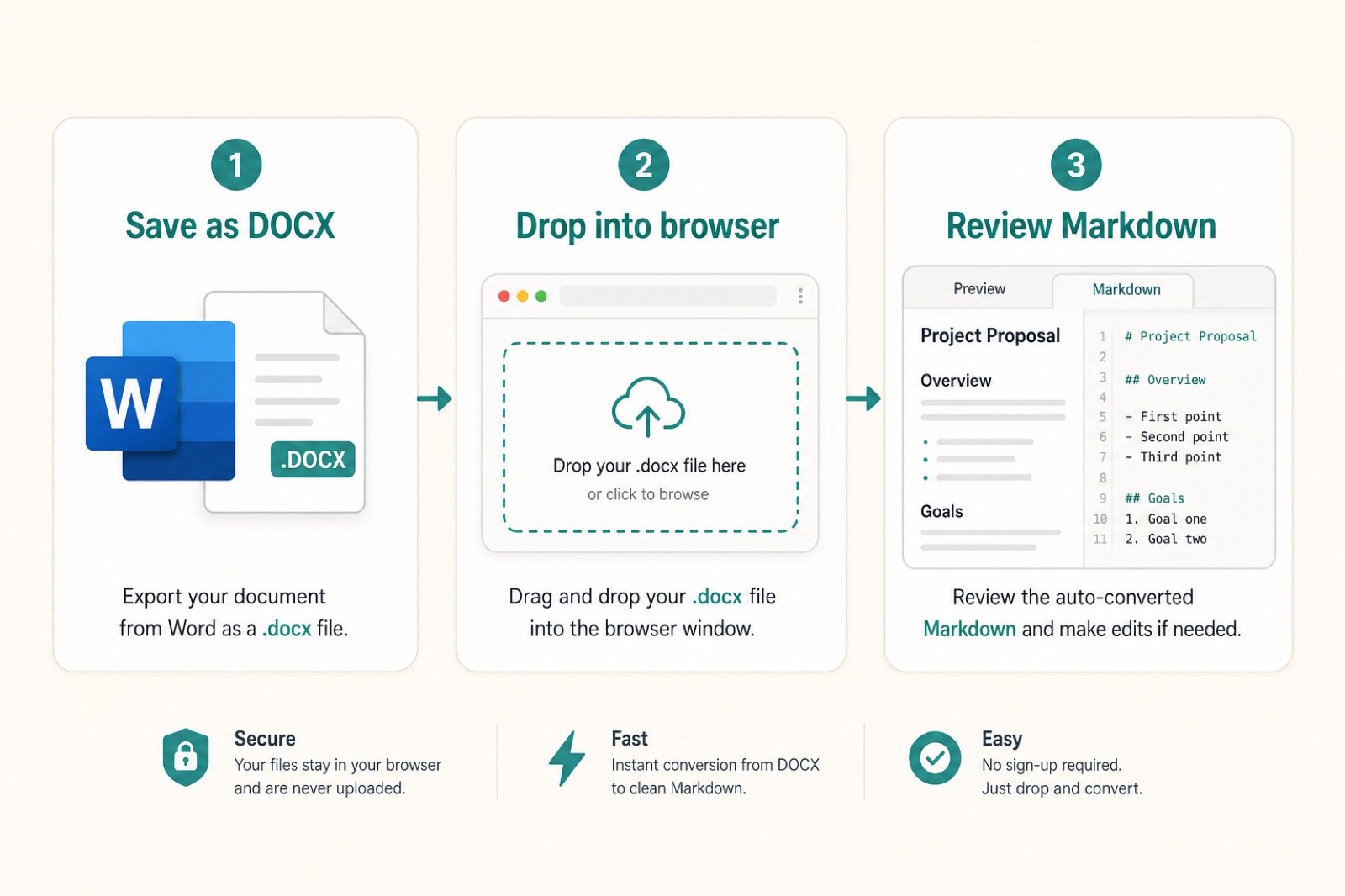
Step 1: Open the local converter
Open Markdown Safe's converter page. You should see a dropzone for local files and a Markdown output panel. Nothing needs an account, and conversion does not depend on uploading the document to a server.
If you want a quick privacy check before converting, use How do I know? The explanation covers browser APIs, local parsing, and how to verify that no conversion upload request is made.
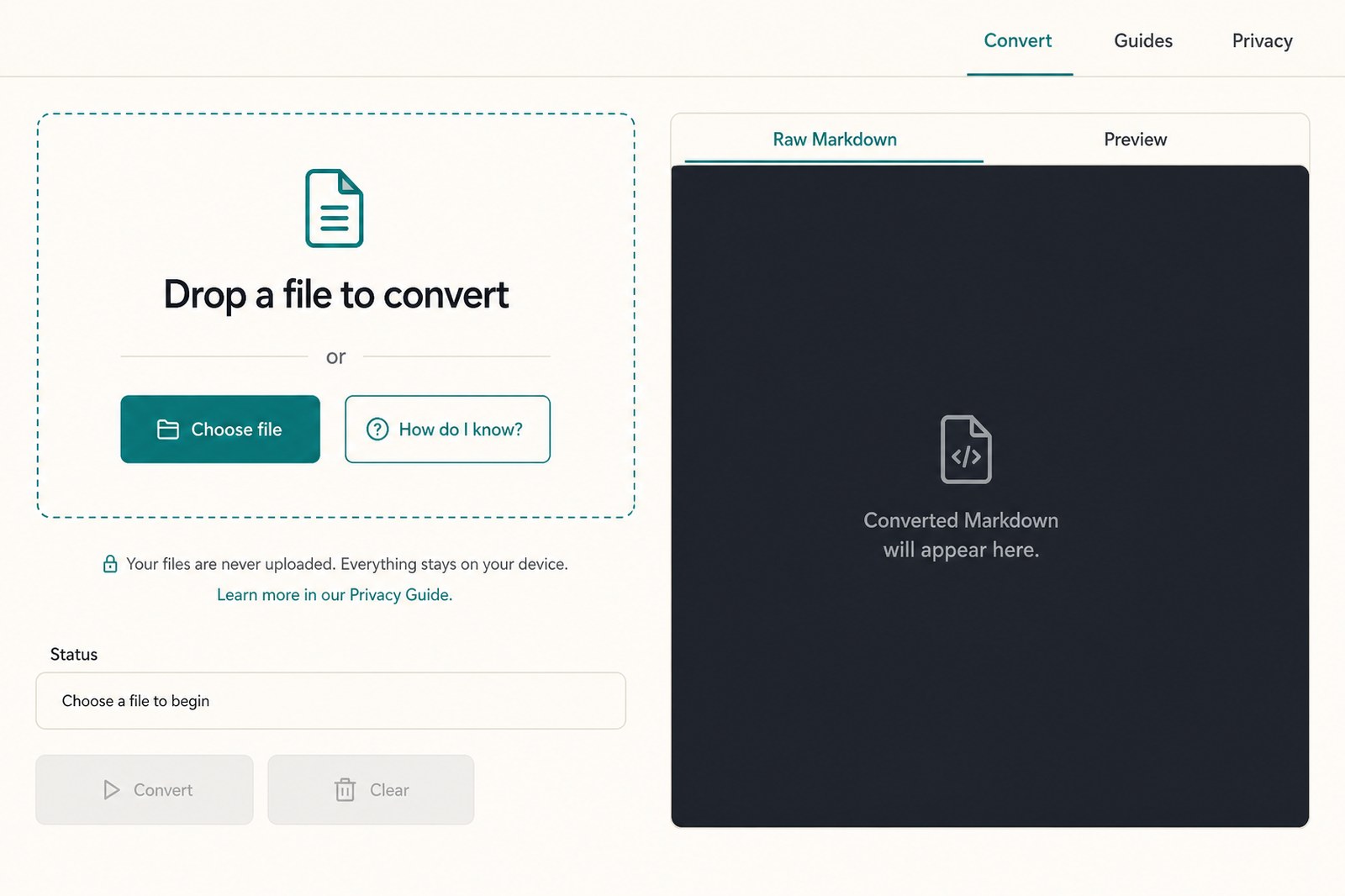
Step 2: Drop in your Word file
Drag your .docx file into the dropzone, or use Choose file. Markdown Safe should recognize the format as DOCX and show the filename and size. At this point the file is still only selected in the browser; conversion has not started yet.
Recommended maximum size is 25 MB. Very large Word files can still convert, but they may take longer because all parsing happens in the current tab.
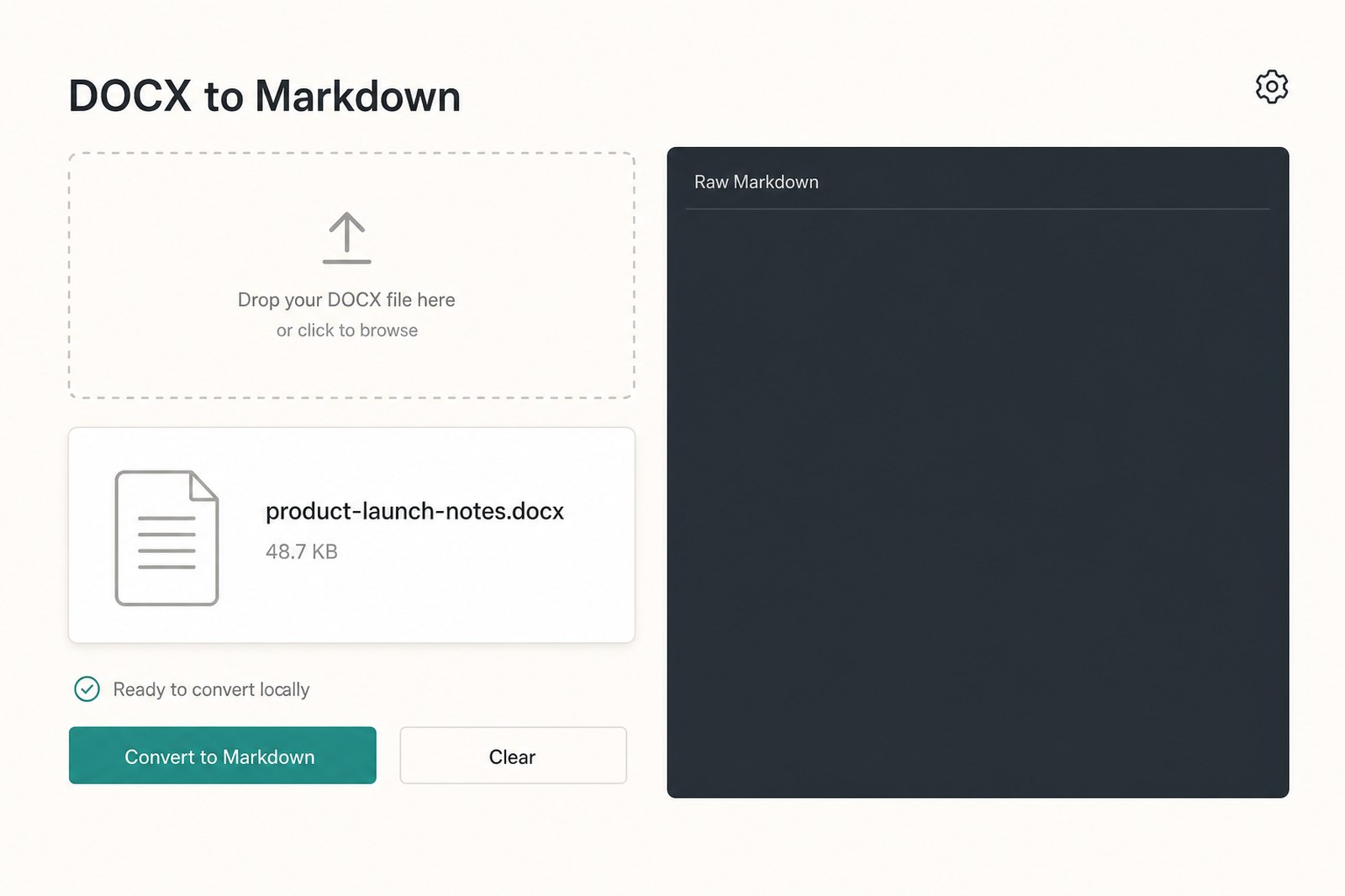
Step 3: Convert and review the Markdown
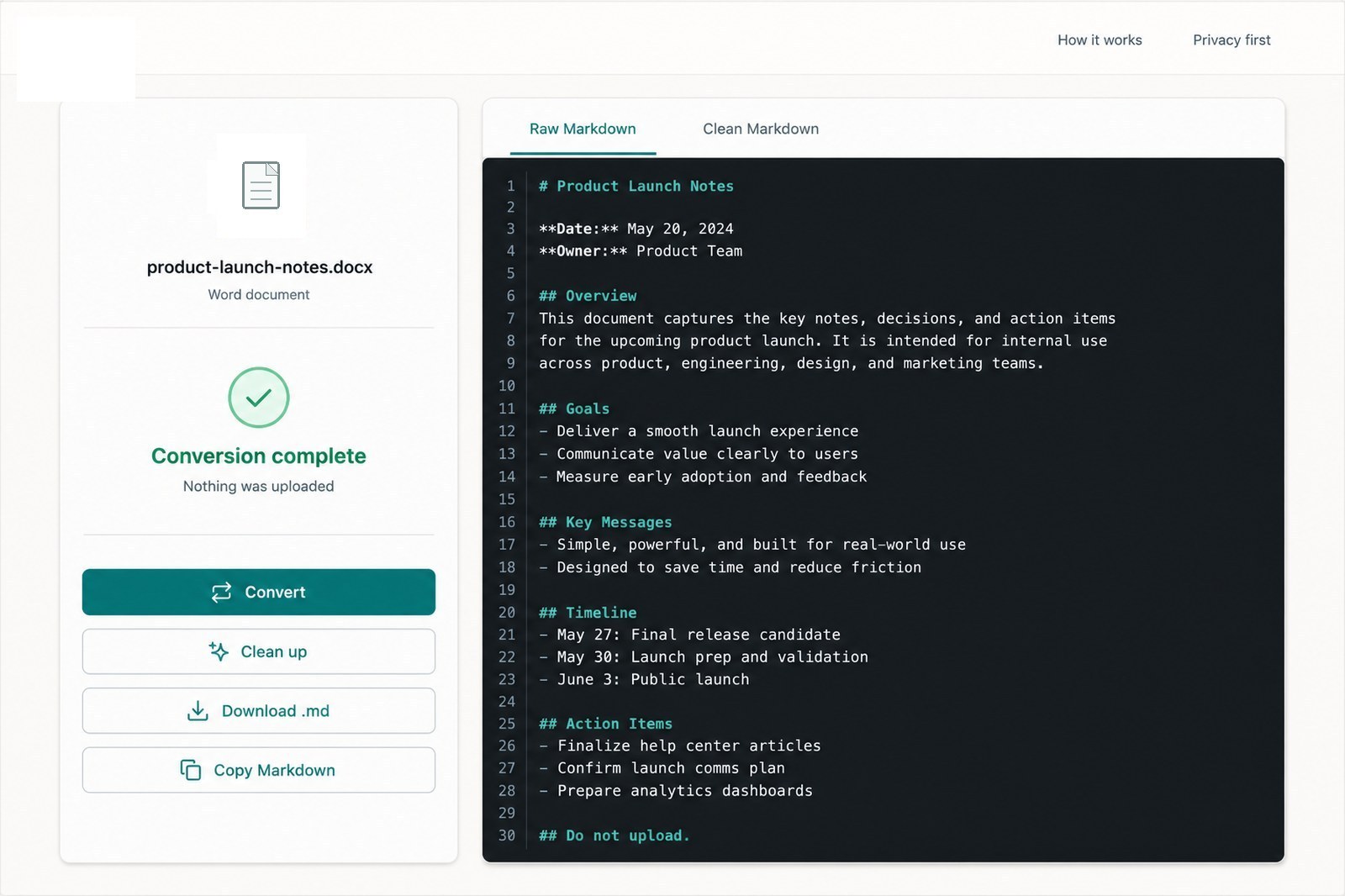
Click Convert to Markdown. The output panel fills with raw Markdown you can edit, copy, or download as a .md file. Switch to Preview when you want a rendered read-through.
Treat the first pass as a draft. Check headings, lists, links, tables, and any bold or italic emphasis that matters. Complex Word layouts, text boxes, and embedded images often need manual cleanup.
- Compare key headings and numbers with the original Word file.
- Use Clean up if the Markdown has noisy spacing or leftover artifacts.
- Download a .md copy only after a quick review of the important sections.
How to verify nothing was uploaded
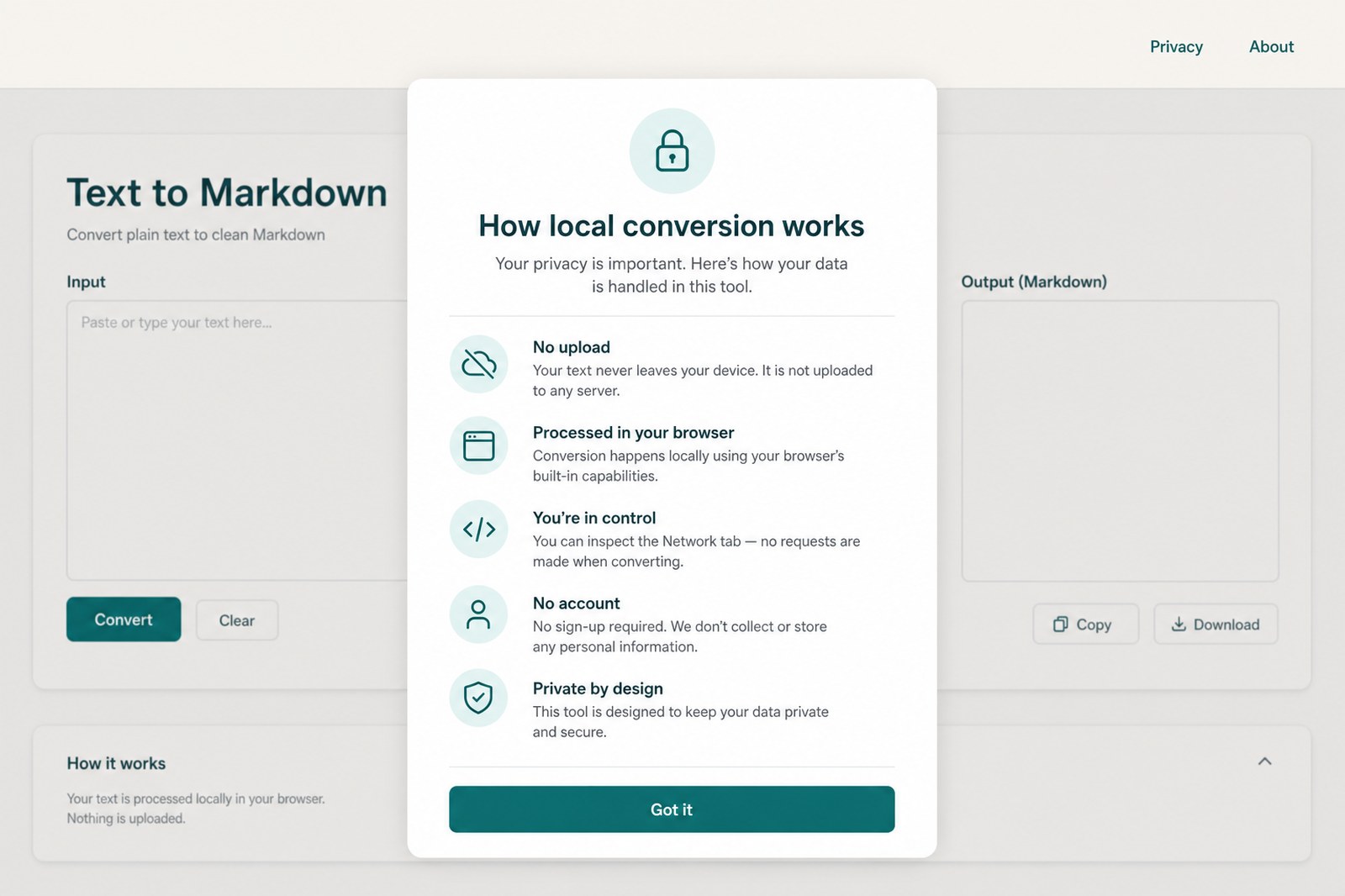
Markdown Safe is built for browser-side conversion: the selected DOCX is read through browser APIs and parsed in the current tab. Ads or ordinary page requests can still exist on the site, but the document contents should not be sent to a conversion upload endpoint.
The practical verification method is the browser Network tab. Start a conversion and confirm there is no request that uploads the Word file for processing.
What converts well from DOCX
Heading styles, paragraphs, emphasis, hyperlinks, ordered and unordered lists, and many simple tables usually survive the trip into Markdown. That is why DOCX is the best default export for private Markdown work.
Expect more review when the Word file relies on text boxes, multi-column layouts, floating images, tracked changes, comments, or heavily styled tables. Markdown is a text format, so visual Word layout will not map one-to-one.
Bottom line
For private Word-to-Markdown conversion, save a local DOCX, convert it in the browser, verify no upload happened, and review the Markdown before publishing.