
PDF to Markdown Without Uploading: A Visual Private Workflow
PDFs are containers. Some hold real selectable text. Others are just images of pages. The private workflow starts by checking which kind you have, then converting locally in the browser so the file never needs to be uploaded for extraction.
First: decide text PDF vs scanned PDF
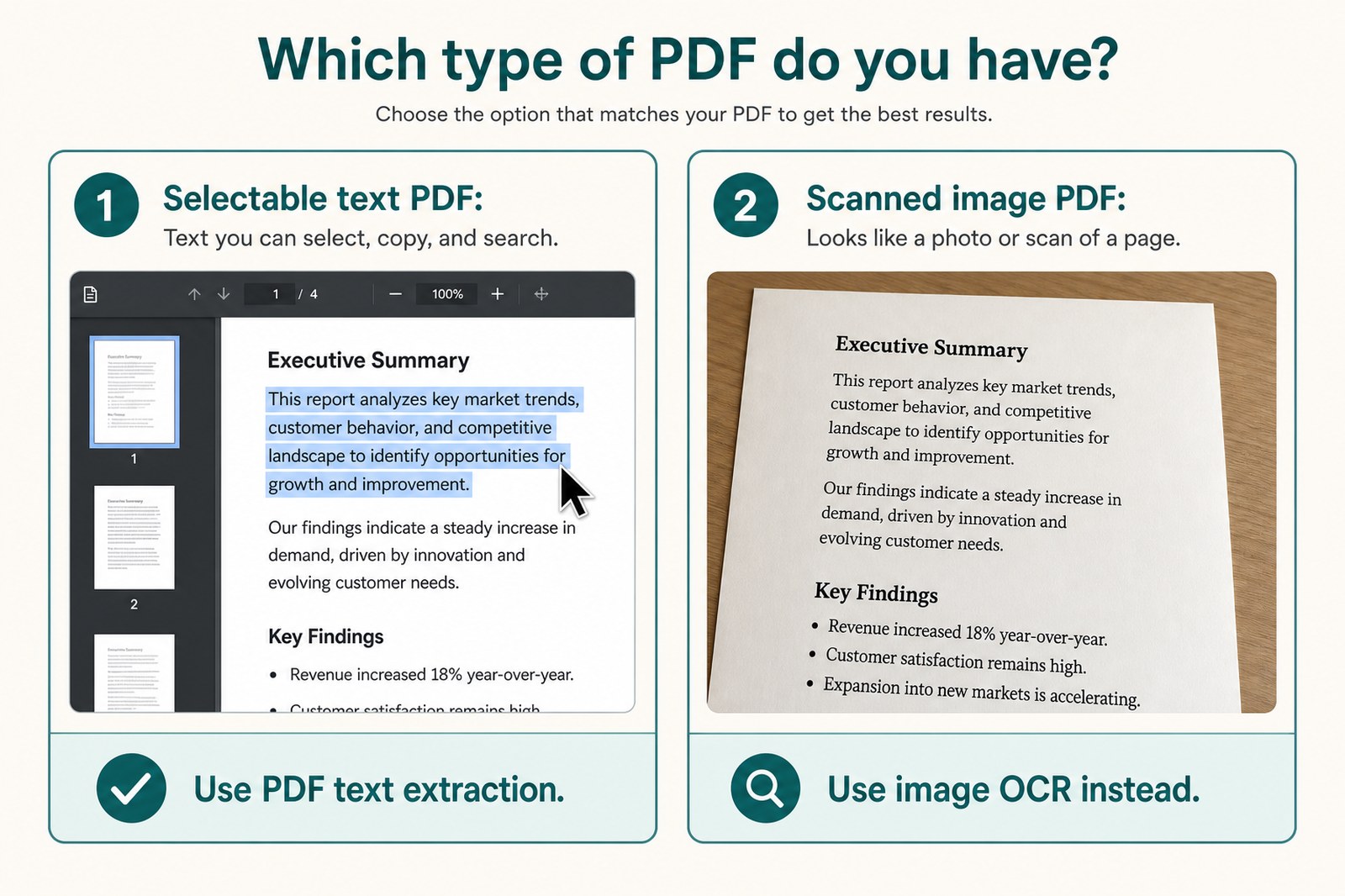
Open the PDF and try to select a sentence with your cursor. If the text highlights and you can copy it, use PDF text extraction. That path is faster than OCR and avoids many character-recognition mistakes.
If the page behaves like a photo — you cannot select words, or selection jumps oddly — it is likely a scan or image-only PDF. Direct extraction may return little or nothing useful. In that case, render or export the page as an image and use local OCR instead.
- Selectable, searchable text → convert the PDF directly.
- Photo or scan of a page → use image-to-Markdown OCR.
- Mixed PDFs may need both paths for different pages.
The private PDF path in three steps
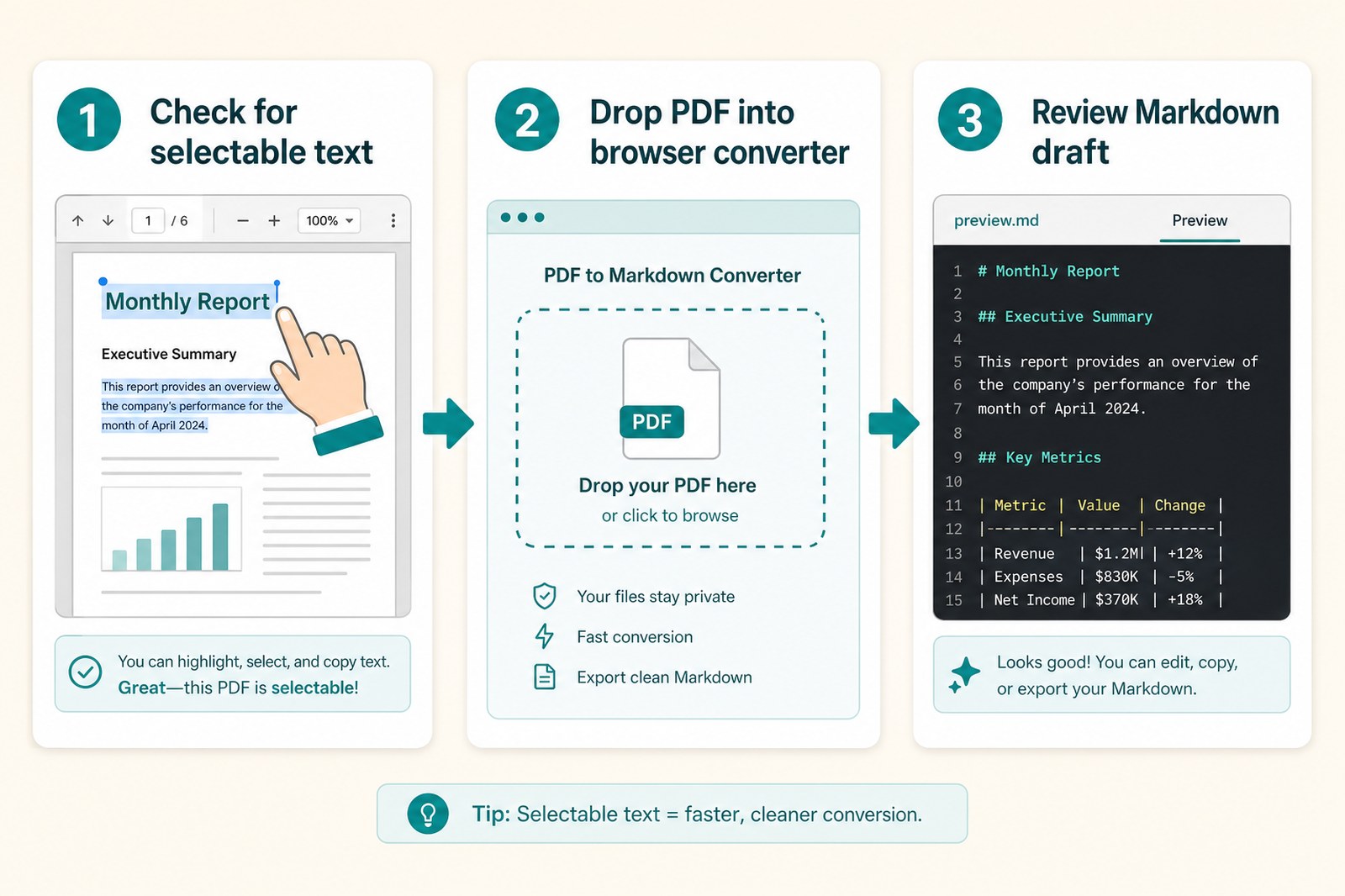
For a text PDF, keep the file on your device, drop it into a browser converter, then review the Markdown draft. Page markers help you compare output against the original page by page.
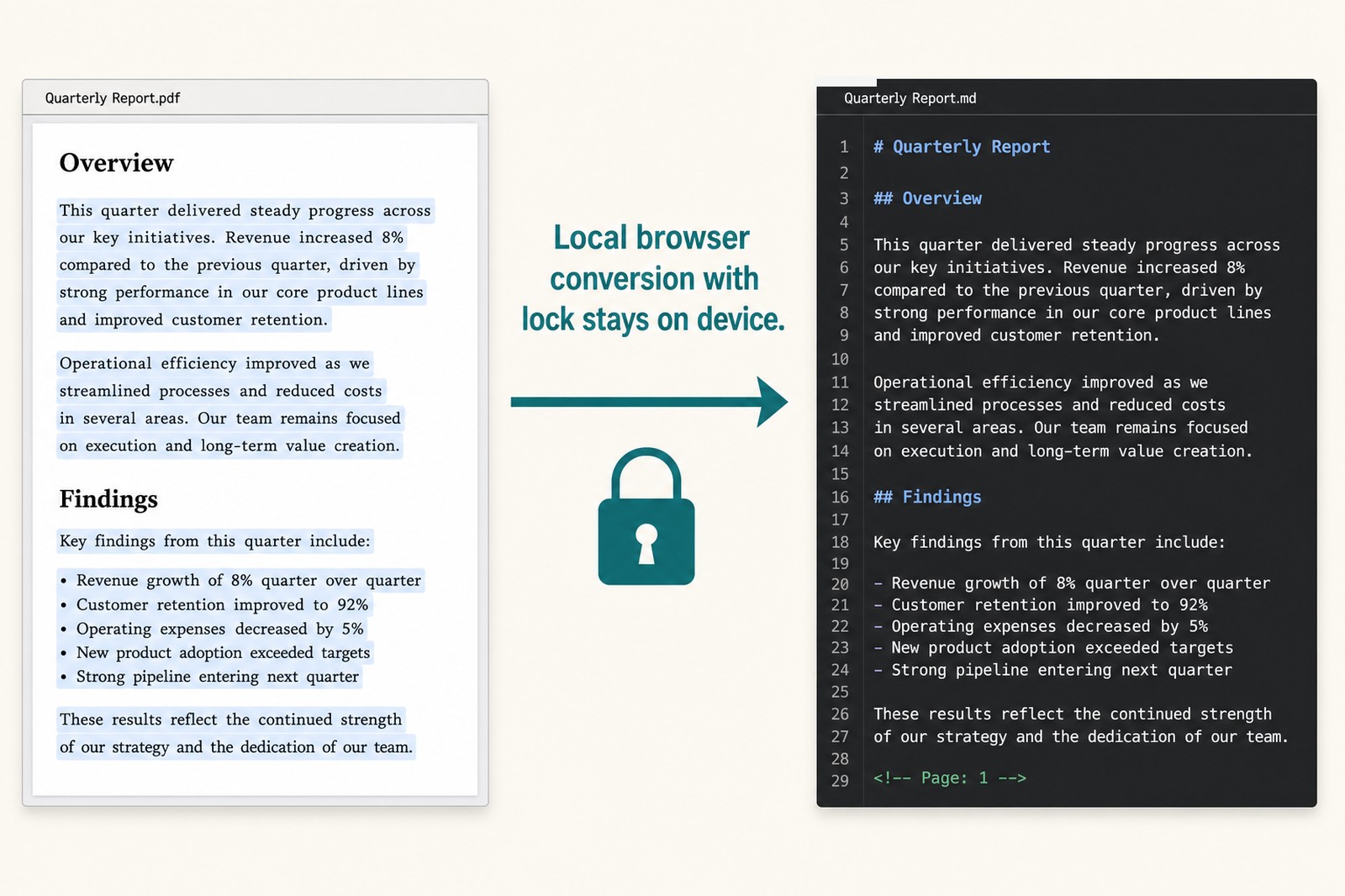
Markdown Safe extracts readable embedded text locally and adds page separators as Markdown comments so the draft is easier to check.
Step 1: Open the local converter
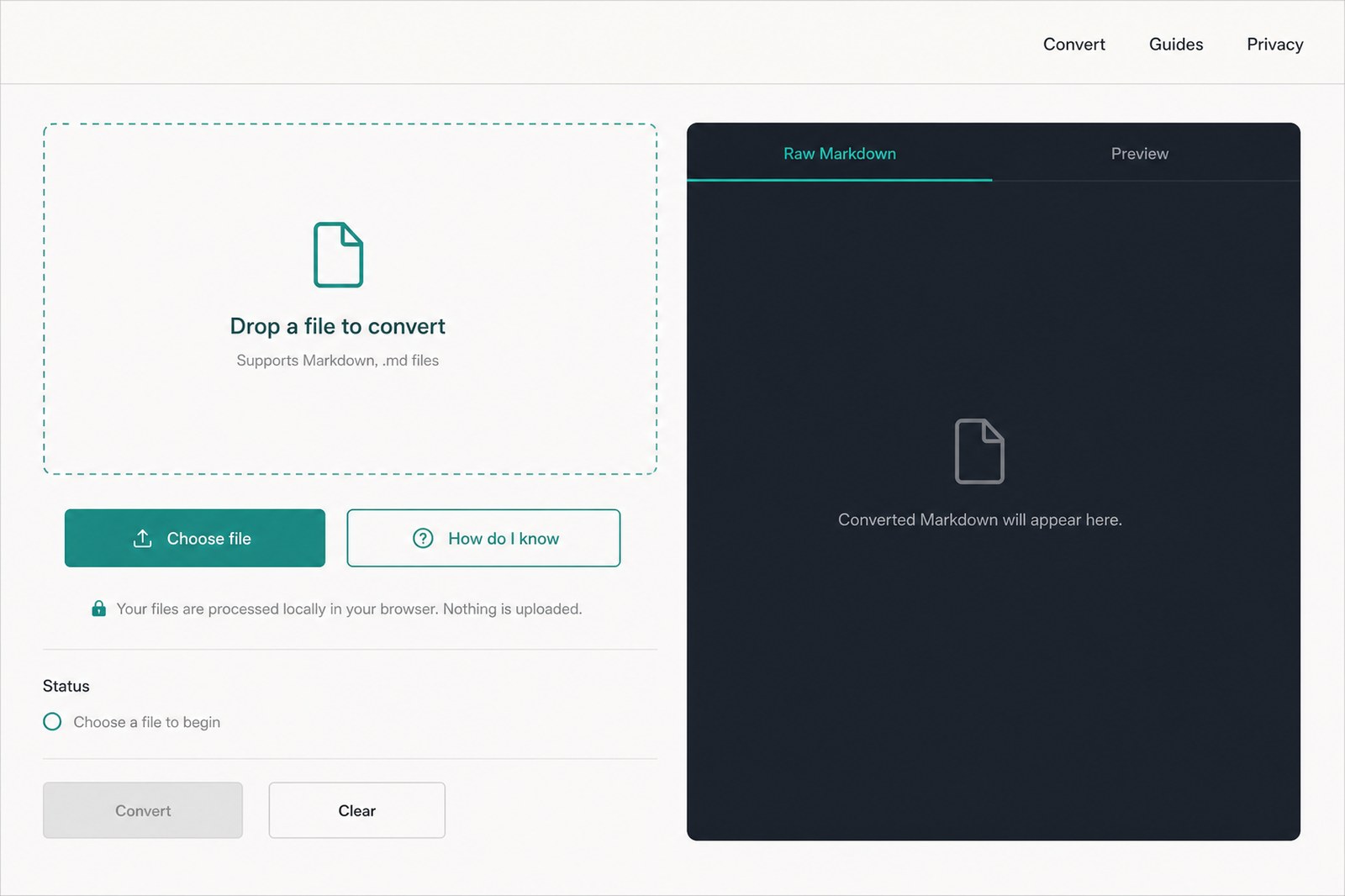
Open the converter page. You should see a dropzone for local files and a Markdown output panel. Nothing needs an account, and conversion does not depend on uploading the PDF to a server.
If you want a quick privacy check before converting, use How do I know? Then confirm with your browser Network tab during a real conversion.
Step 2: Drop in your PDF
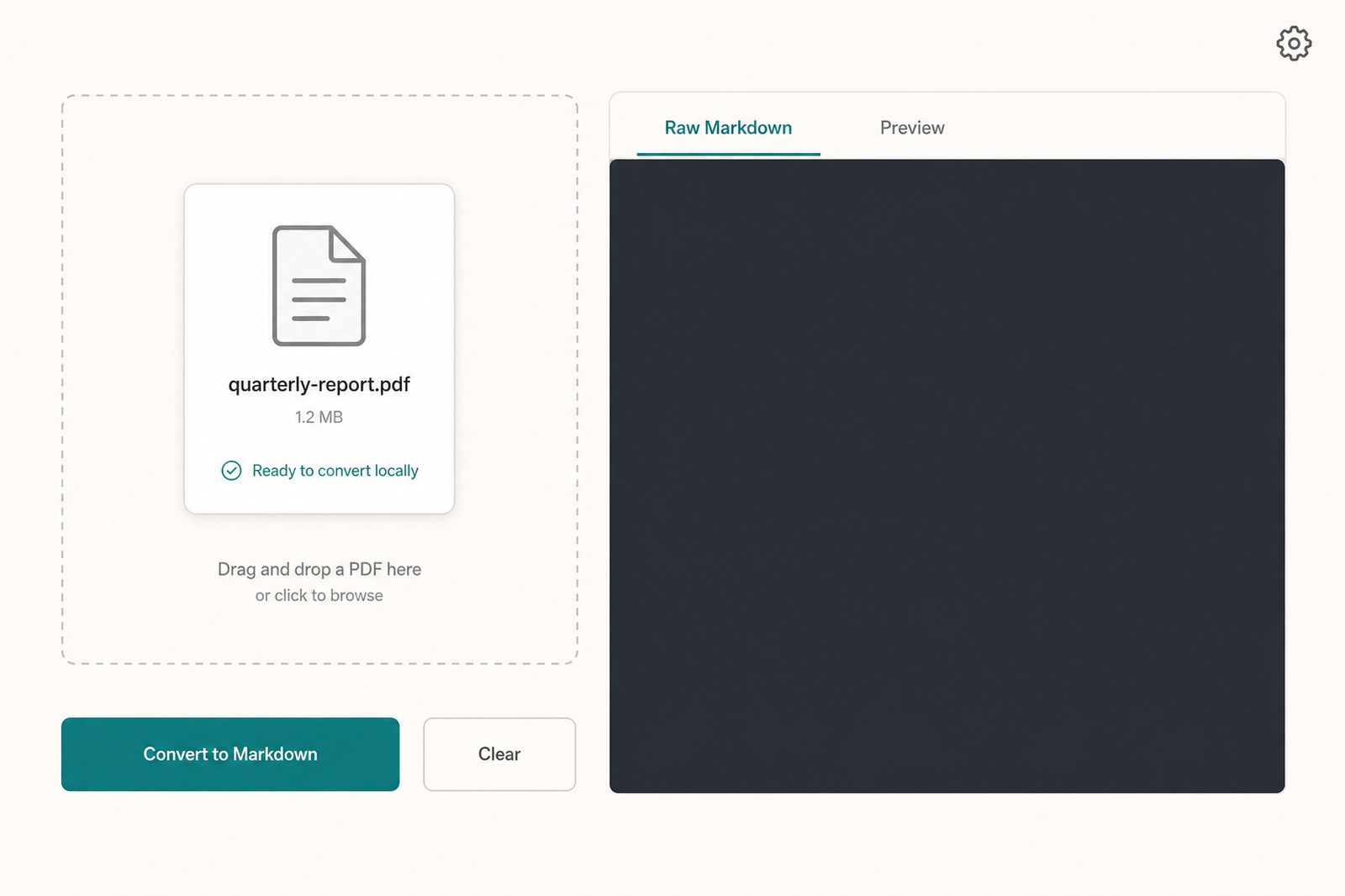
Drag your .pdf file into the dropzone, or use Choose file. The converter should recognize the format as PDF and show the filename and size. At this point the file is only selected in the browser; conversion has not started yet.
Recommended maximum size is 25 MB. Large PDFs can still convert, but they may take longer because parsing runs in the current tab.
Step 3: Convert and review the Markdown
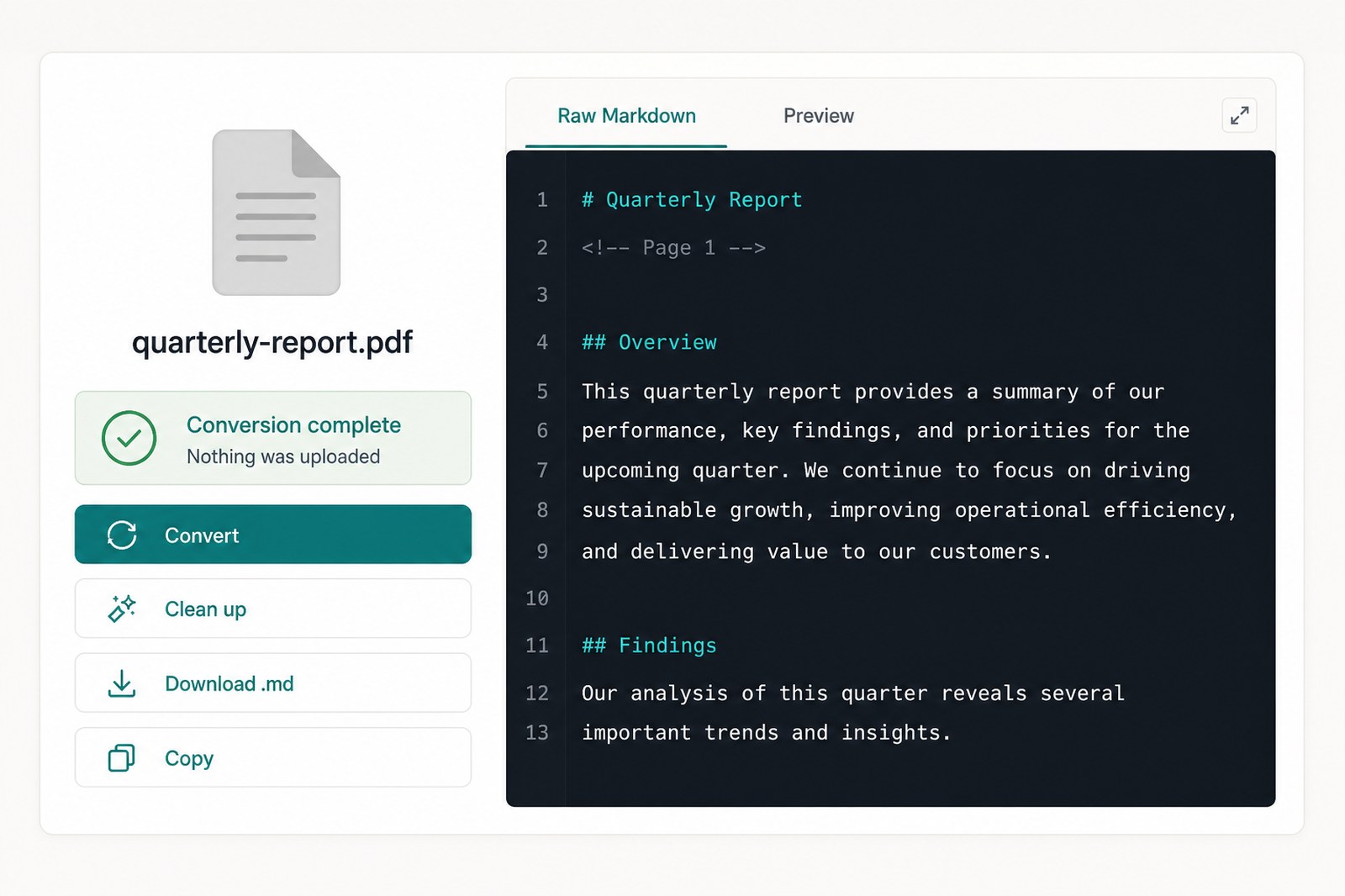
Click Convert to Markdown. The output panel fills with extracted text, often including page markers such as <!-- Page 1 -->. Switch to Preview when you want a rendered read-through.
Treat the first pass as a draft. PDFs are layout files, so columns, tables, footnotes, headers, and page decorations may flatten or appear out of order. Compare key headings, numbers, and dates with the original PDF before publishing.
- Use page markers to jump between source pages and Markdown sections.
- Use Clean up if spacing or leftover artifacts are noisy.
- Download a .md copy only after reviewing important sections.
How to verify nothing was uploaded
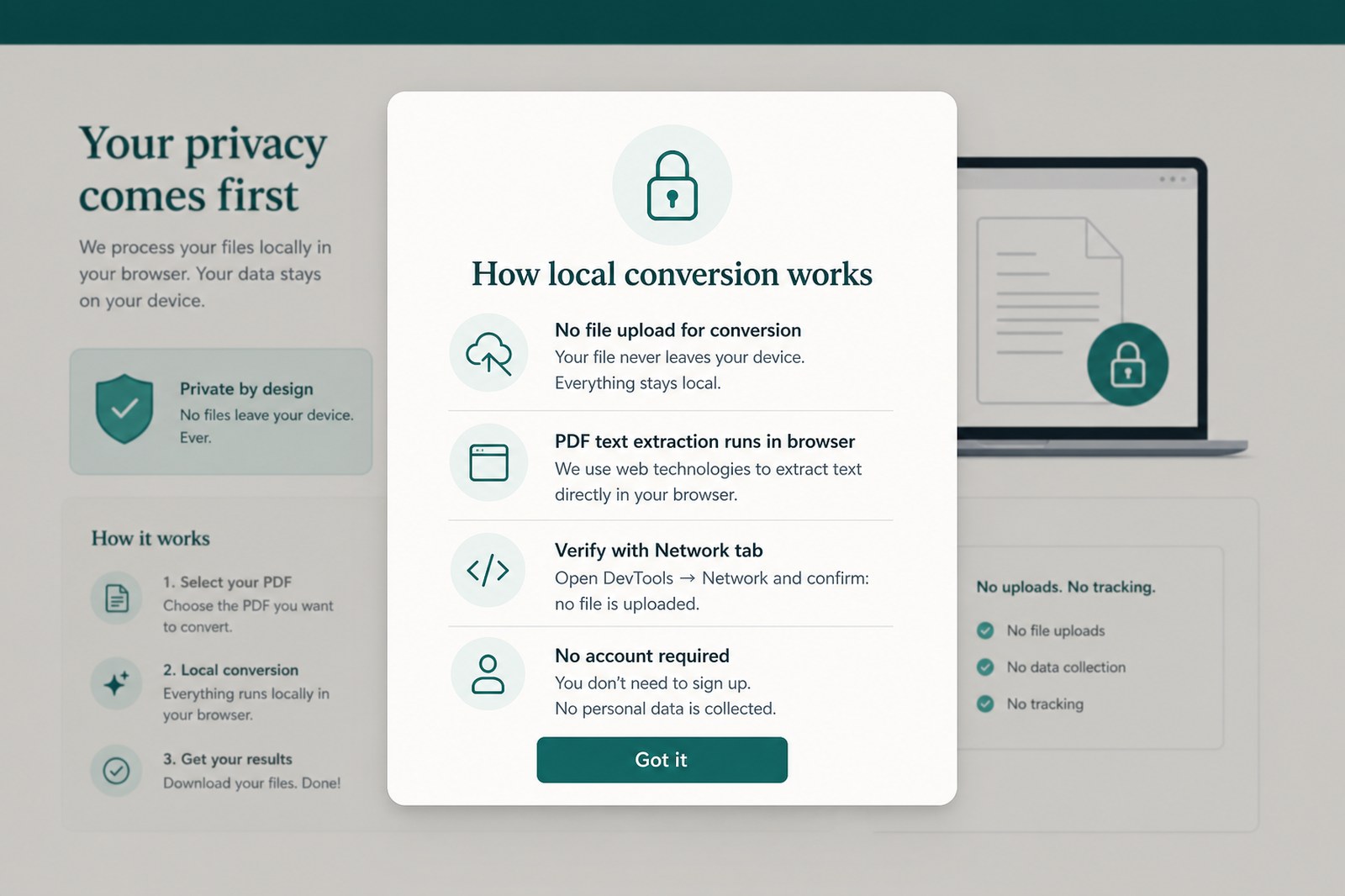
Markdown Safe is built for browser-side conversion: the selected PDF is read through browser APIs and parsed in the current tab. Ads or ordinary page requests can still exist on the site, but the document contents should not be sent to a conversion upload endpoint.
The practical verification method is the browser Network tab. Start a conversion and confirm there is no request that uploads the PDF for processing.
When to switch to OCR instead
If extraction returns empty output, garbled fragments, or almost no text, the PDF may be image-only. Export or render the scanned page as PNG or JPG, then use the image-to-Markdown OCR path.
OCR can misread similar characters and flatten layout, so review that draft carefully too — especially for receipts, contracts, academic citations, or financial figures.
Bottom line
For private PDF-to-Markdown work, check for selectable text first. Extract text PDFs locally in the browser, use OCR for scans, and review the Markdown before publishing.